Brevo
Brevo is a powerful email marketing and automation platform that you can connect with CartBounty to recover abandoned carts. It offers one of the most flexible automation builders out there, combined with an intuitive interface that makes even advanced recovery workflows easy to create and manage.
CartBounty automatically synchronizes customer and cart information with Brevo, allowing you to create personalized multi-step recovery campaigns using delays, filters, conditions, coupons, and product information. Dedicated events also allow Brevo to automatically stop sending reminders when a customer places an order or the abandoned cart is removed.
1. Integrating with Brevo
To connect CartBounty with Brevo, you will need a Brevo account, an API key, and a contact list where your abandoned cart customers will be synchronized.
- Sign in to Brevo
- Open your account menu and navigate to Settings > SMTP & API > API Keys & MCP
- Use the “Generate API key” button
- Give the API key a recognizable name, such as CartBounty, and copy the generated key
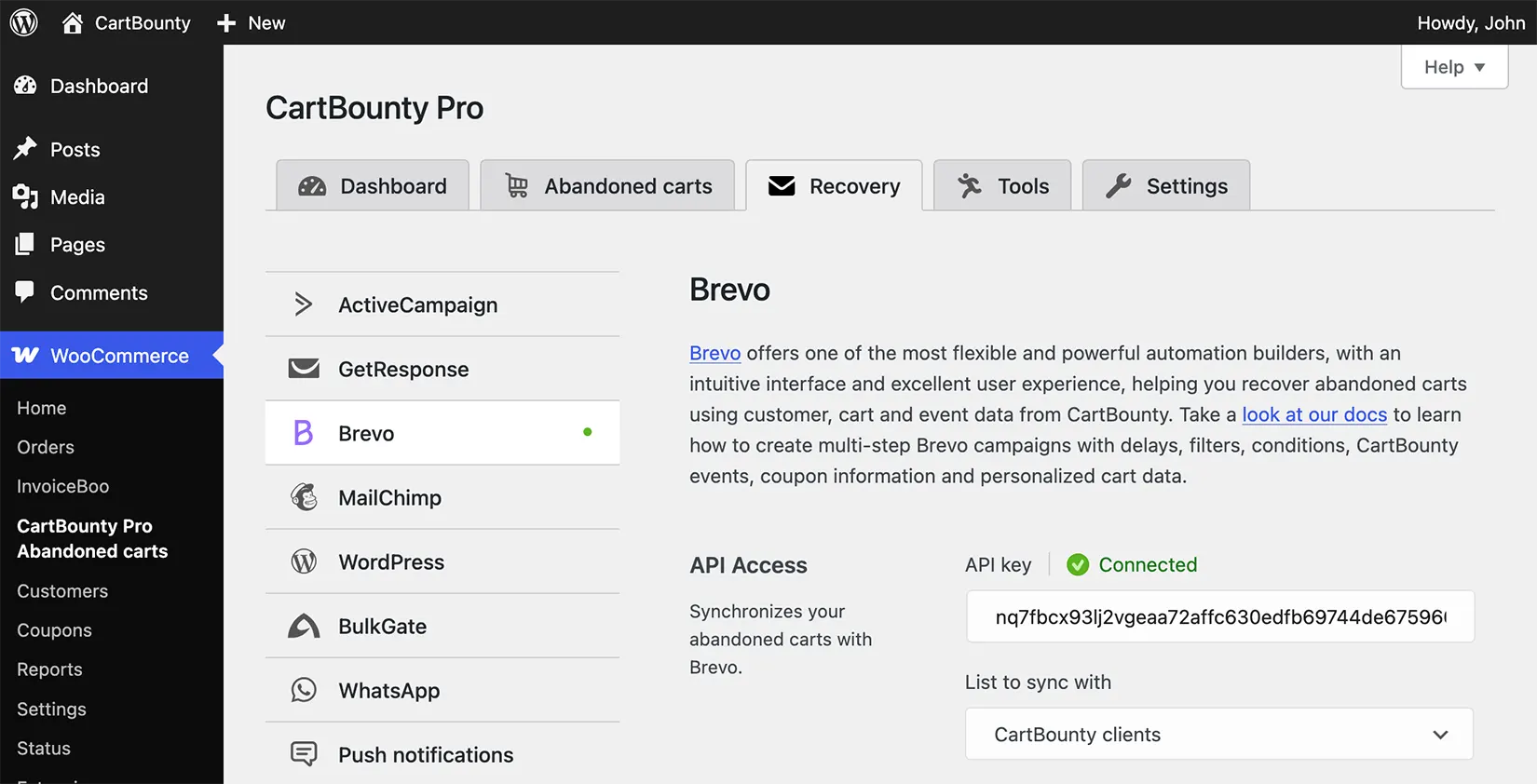
- Go to your WordPress dashboard > WooCommerce > CartBounty Pro
- Open Recovery > Brevo
- Paste your Brevo API key
- Use the “Save settings” button
- Select the Brevo contact list where abandoned cart customers should be synchronized. If you do not have a contact list yet, return to Brevo and navigate to CRM > Contacts > Lists and create a new list
- Optionally set up a Coupon
- Optionally setup Exclusions
- Save the settings
If the integration is successful, you will see a green Connected notice. Now you are ready to create your abandoned cart recovery automation in Brevo.
2. Create abandoned cart recovery automation
Brevo automations are extremely powerful and highly customizable, allowing you to create a series of personalized abandoned cart reminders based on customer information, cart contents, order value, coupons and different conditions.
For the purposes of this guide, we will create an automation that sends the first reminder after one hour and another reminder one day later.
- Sign in to Brevo
- Navigate to Automations > Workflows
- Use the “Create an automation” button
- Select to start with a blank automation workflow
- Give your automation a recognizable name, such as CartBounty abandoned cart recovery
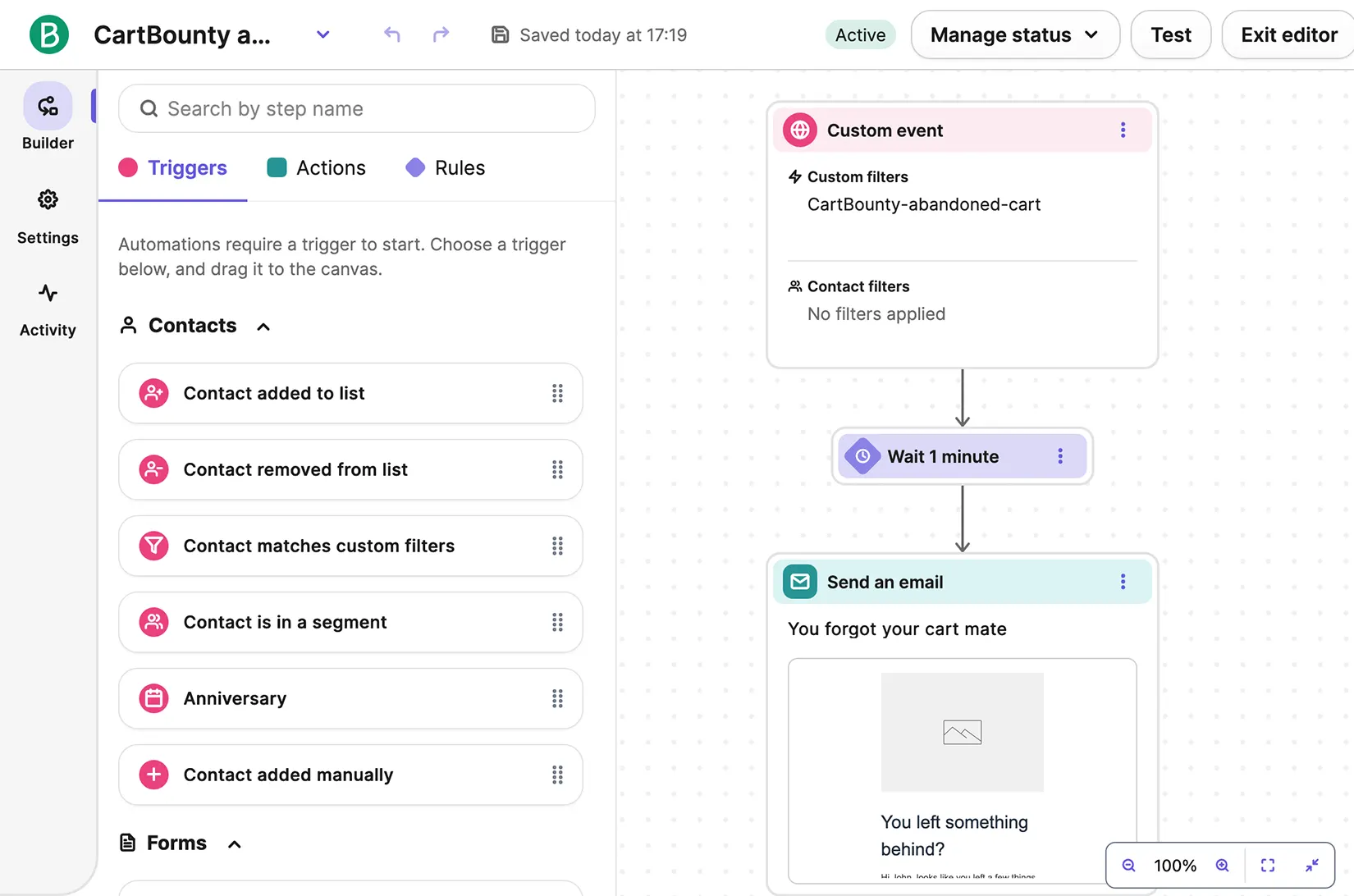
- Add a “Custom event” trigger
- Select
CartBounty-abandoned-cartas the event that starts the automation - Optionally add event filters to limit the automation to specific carts, products, cart values, or stores
- Add a “Time delay” from the Rules tab and set to wait for 1 minute before sending the first reminder email
- Add a “Send an email” action
- Create or select your abandoned cart recovery email. Make sure to select Event that triggered this automation under “What event data to display” so that CartBounty personalization tags work correctly
- Add another “Time delay” after the first reminder email and set to wait for 1 day before sending the second reminder
- Add another “Send an email” action and create or select your second reminder email
- Save your emails and automation settings
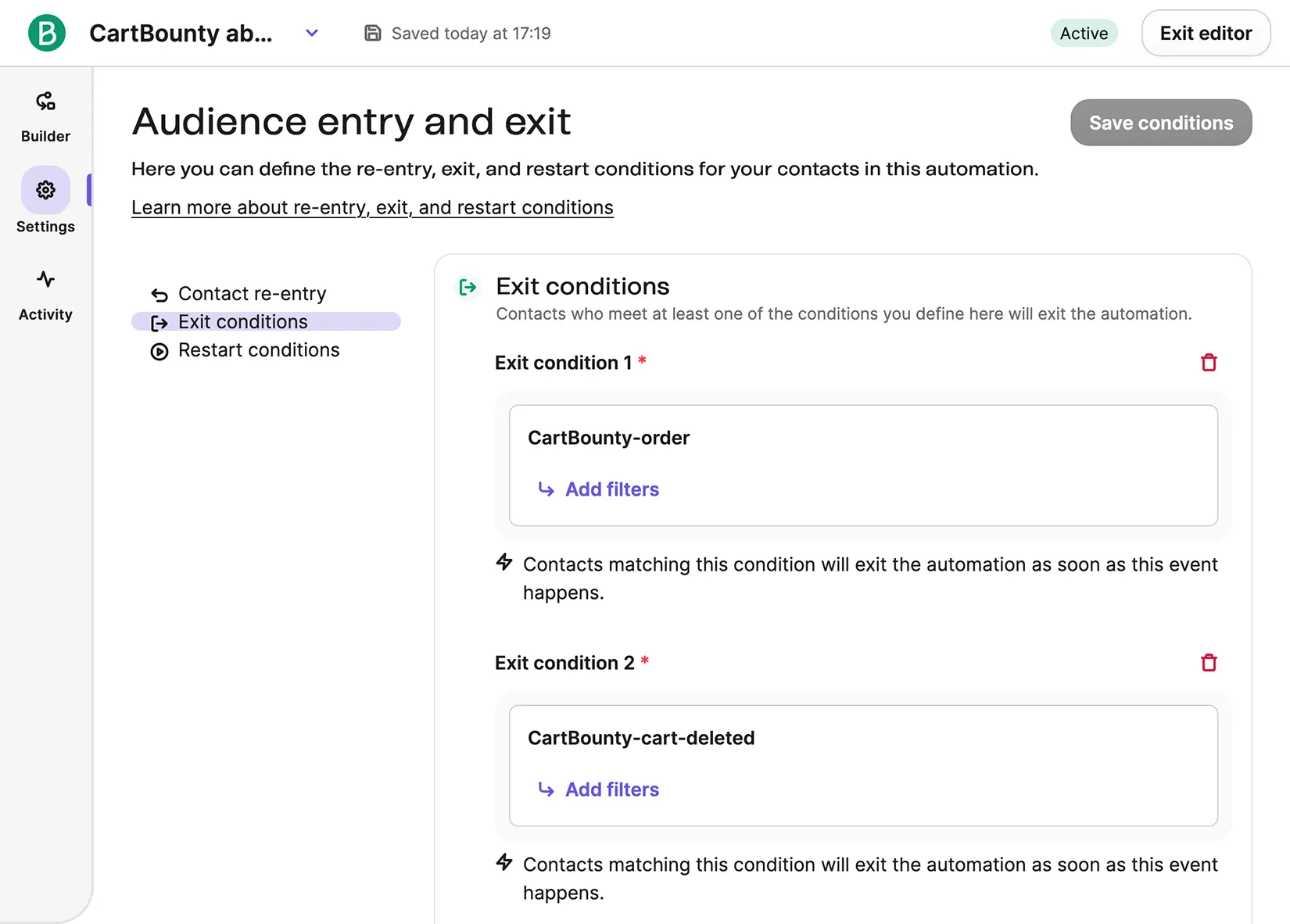
- Open the automation settings and enable Allow contact re-entry after exit to allow customers to enter the recovery automation again if they abandon another cart in the future
- Configure Exit conditions by adding two custom events:
CartBounty-orderandCartBounty-cart-deleted. These conditions ensure that customers exit the automation and stop receiving further reminders if they complete an order or their abandoned cart is deleted from CartBounty
- Optionally add a Coupon to your reminder
- Save and activate your automation
You can add as many reminder steps as necessary to create your desired recovery workflow.
The delay starts when Brevo receives the abandoned cart event. CartBounty waits a specific time period before sending abandoned cart over Brevo, so remember to consider that initial delay when configuring your first Time delay rule.
Personalize abandoned cart emails
CartBounty sends abandoned cart information to Brevo, allowing you to create personalized recovery emails using customer information, cart contents, product images, prices, and recovery links.
You can use the following personalization tags in your Brevo emails.
| Personalization tag | Description |
|---|---|
{{ contact.FIRSTNAME }} | Customer’s first name |
{{ contact.LASTNAME }} | Customer’s last name |
{{ params.cart_total }} | Abandoned cart total |
{{ params.currency }} | Cart currency |
{{ params.cart_url }} | Link to restore the abandoned cart |
{{ params.store_name }} | Store name |
{{ params.items.0.name }} | Name of the first product |
{{ params.items.0.price }} | Price of the first product |
{{ params.items.0.image }} | Image URL of the first product |
{{ params.coupon }} | Coupon code |
{{ params.coupon_amount }} | Coupon discount amount |
{{ params.coupon_type }} | Coupon discount type |
CartBounty-specific Brevo events
CartBounty automatically sends dedicated events to Brevo whenever an abandoned cart is synchronized, converted into an order or deleted. These events allow Brevo to start and stop recovery automations based on what happens to the customer’s cart in your WooCommerce store.
CartBounty uses the following events to control the recovery process:
| Event | Description |
|---|---|
CartBounty-abandoned-cart | Sent when an abandoned cart is synchronized with Brevo. This event starts the recovery automation. |
CartBounty-order | Sent when a previously synchronized abandoned cart becomes an order with a finished payment status. This event can stop further reminders. |
CartBounty-cart-deleted | Sent when a previously synchronized abandoned cart is deleted from CartBounty. This event can also stop further reminders. |
3. Enable coupons
CartBounty allows you to include both static and one-time generated discount codes inside Brevo recovery emails to encourage customers to complete their orders. To enable coupons, start by configuring the coupon in CartBounty and then include the appropriate personalization tags in your Brevo email template.
Abandoned cart users who are not eligible for the coupon code will not receive it.
Configure coupon
- Go to your WordPress dashboard > WooCommerce > CartBounty Pro
- Open Recovery > Brevo
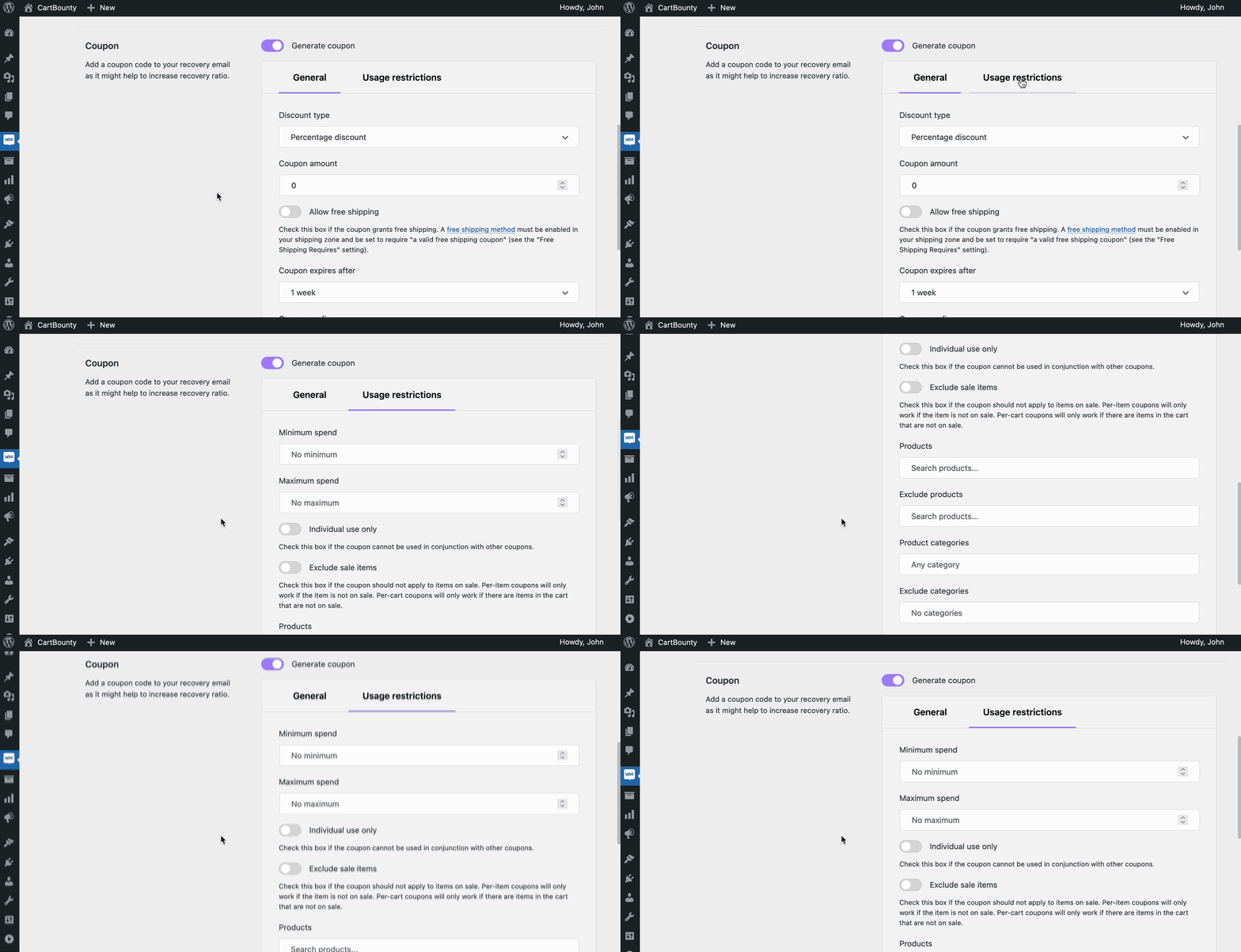
- Choose to generate a unique coupon code for each abandoned cart user or select an existing coupon code from the list that will be sent to eligible abandoned carts
- Set up Usage restrictions if necessary
- Use the “Save settings” button
Add coupon to Brevo email
CartBounty synchronizes the coupon code, discount amount, and discount type with the abandoned cart event, allowing you to display personalized coupon offers inside your Brevo recovery emails.
- Sign in to Brevo
- Navigate to Automations > Workflows and open your abandoned cart recovery automation
- Select the reminder email where you would like to include a coupon code
- Add a new Text block and insert a coupon code using the Add variable option. Alternatively, add an HTML block and use Personalization tags to create a customized coupon offer with conditional statements
- Save the updated reminder email
Here is an example how you can use Brevo personalization tags and conditional statements to display a coupon code together with a personalized discount message inside HTML block of Brevo email builder. The example automatically adjusts the message depending on whether CartBounty has provided a percentage discount, a fixed cart discount, or a fixed product discount. Coupon information is displayed only when the customer is eligible to receive a coupon.
{% if params.coupon %}
	{% if params.coupon_type == "percent" %}
		<p>Get {{ params.coupon_amount }}% off your order!</p>
	{% elif params.coupon_type == "fixed_cart" %}
		<p>
			Get {{ params.coupon_amount }} {{ params.currency }}
			off your order!
		</p>
	{% elif params.coupon_type == "fixed_product" %}
		<p>
			Get {{ params.coupon_amount }} {{ params.currency }}
			off each eligible product!
		</p>
	{% endif %}
	<p>Use coupon code: {{ params.coupon }}</p>
{% endif %}
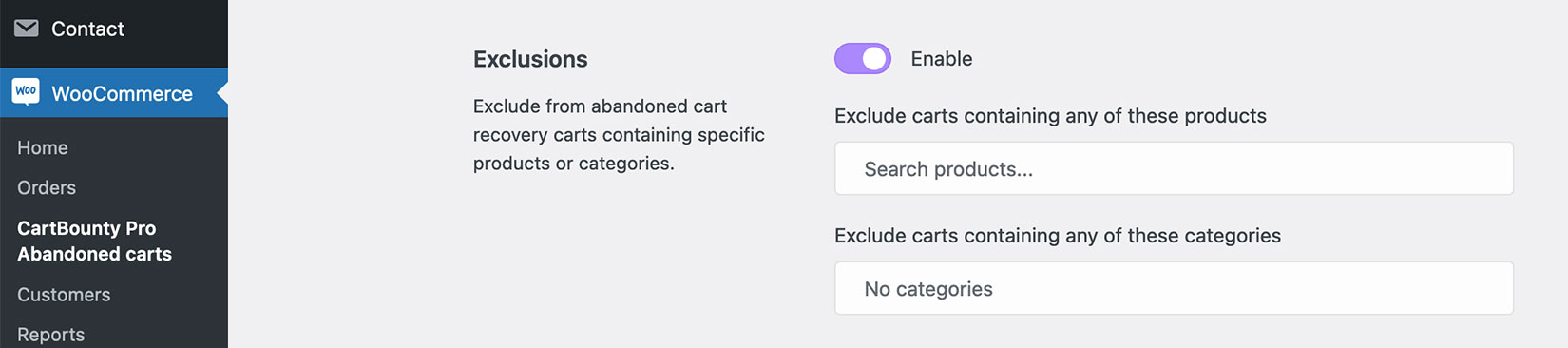
4. Exclusions
Exclusions block allows an easy way to exclude carts from abandoned cart recovery containing specific products or product categories. If any of the excluded products or product categories is found inside the cart, CartBounty will automatically exclude this cart from recovery.
What’s next
You have learned how to synchronize abandoned carts with Brevo, create personalized multi-step recovery campaigns, include discount codes, and automatically stop reminders when a customer places an order or the abandoned cart is removed. These topics might also interest you:
- How to send effective abandoned cart recovery emails
- Get new leads and increase sales using Exit Intent popup
- Increase recoverable carts and sales with “Add to cart” popup
- Lower cart abandonment using dynamic browser Tab notification
- Increase recovery ratio with cart abandonment push notifications
- Using abandoned cart statistics to reduce cart abandonment
