WhatsApp is one of the worlds most popular messaging app. With more than 3 billion active users around worldwide it is the perfect channel for sending personal, time-sensitive shopping cart reminder messages. According to this report – WhatsApp message open rates can reach up to 98%, compared to roughly 20% for email. That means higher chances of shopping cart recovery for your business and more sales.
CartBounty lets you connect with WhatsApp to send a single or multiple abandoned cart reminder messages. Besides that CartBounty also allows tracks delivery results such as open rates, click rates, unsubscribe rates and shopping cart recovery rates to allow you to evaluate effectiveness of every reminder message. Please follow this guide to connect CartBounty with WhatsApp and start sending personalized reminder messages directly to your customers.
- Connect CartBounty with WhatsApp
- WhatsApp abandoned cart reminders
- Enable coupons
- Limit countries
- Quiet hours
- Exclusions
- How to opt-in customers
- WhatsApp webhook
1. Connect CartBounty with WhatsApp
There are a couple of easy to follow steps that you must complete to connect CartBounty With WhatsApp before you can start sending abandoned cart reminders via WhatsApp. In order to obtain API access you will need Meta system user access token, your WhatsApp business account (WABA) ID and your app ID. Please follow instructions below to obtain them.
- Create a Meta Business account if you don’t already have one
- Sign up for a free Meta developer account if you have not done this already
- Create a new app by following Meta’s setup instructions
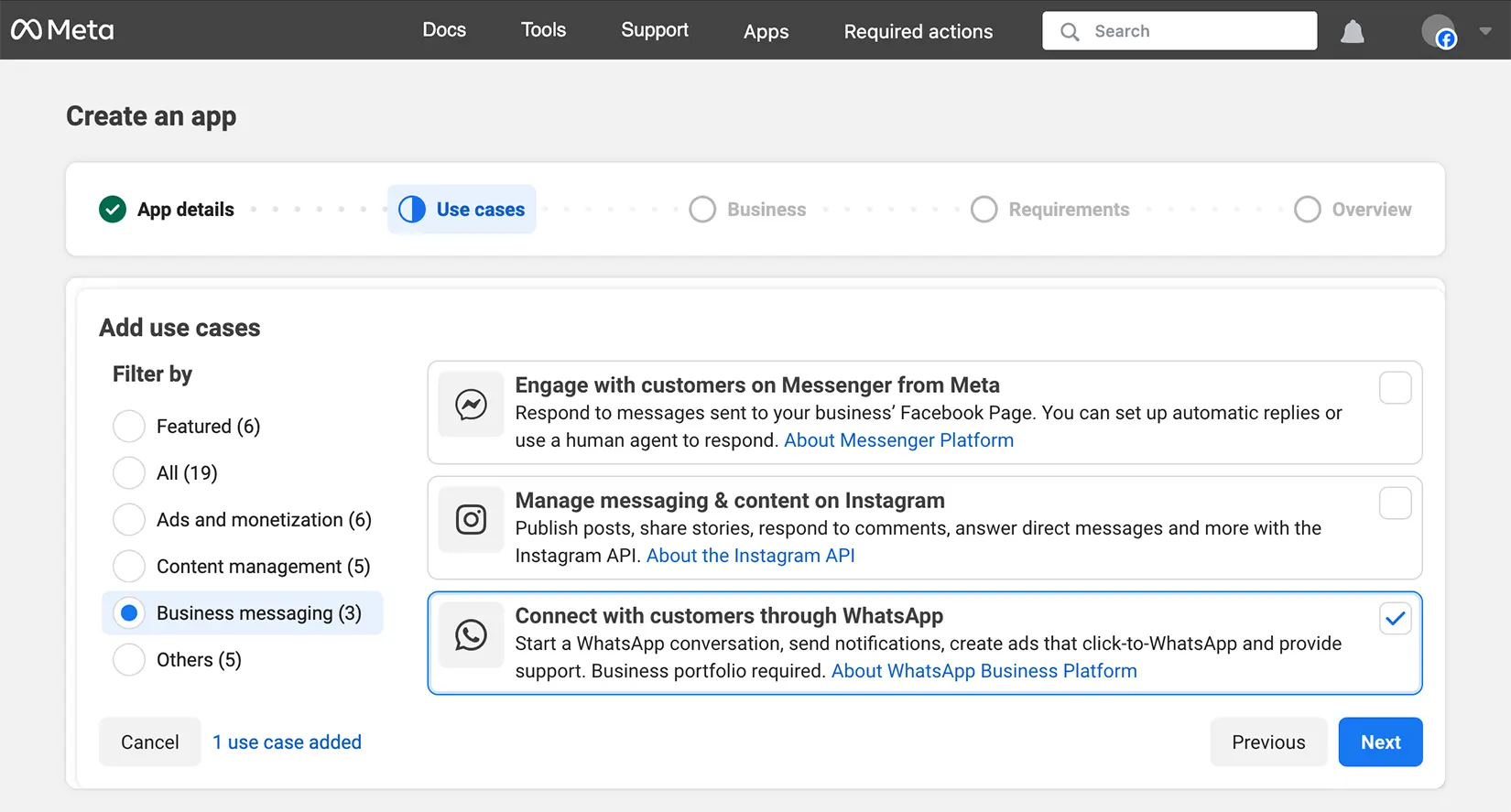
- Continue by creating a system user access token that will be used for establishing communication between CartBounty and WhatsApp. Copy and save the token for later
- Create a system user access token. Copy and save it for later
- Register your business phone number. This number will be used for all abandoned cart message delivery
- Navigate to the “API Setup” tab of your app’s use cases section, select phone number and copy your WhatsApp Business Account ID
- Go to your Meta apps, open the app you just created, locate app ID and copy it
- Switch your app from Development mode to Live
- Go to your WordPress dashboard > WooCommerce > CartBounty Pro
- Open Recovery > WhatsApp
- Paste the System user access token and WhatsApp business account ID obtained in previous steps and save the settings
- If the connection is successful, an additional field will appear. Paste your Meta app ID and save the settings again
- Optionally connect WhatsApp webhook to CartBounty to receive message open and failure information
If the connection is successful, you will see a green “Connected” notice and automation workflow settings will become available. Now you are ready to move to the next step and setup WhatsApp abandoned cart reminders.

2. WhatsApp abandoned cart reminders
With an impressive 98% open rate, WhatsApp reminder messages can be considered a highly effective channel for abandoned cart recovery. Please follow these steps to setup WhatsApp reminder abandoned cart messages in CartBounty.
- Go to your WordPress dashboard > WooCommerce > CartBounty Pro
- Open Recovery > WhatsApp
- Follow this TCPA / GDPR compliance guide and mark it as complete once done
- Click on the First message to open its settings
- Enable the message
- Choose to send the message after 5 minutes if you want it to be delivered 60 minutes after the cart has been abandoned
- Edit message contents. Please see this to learn how to translate messages
- Optionally personalize message using dynamic content tags
- Optionally setup a coupon
- Test your message before sending it
- Repeat these steps for any additional messages if you would like to send a series of reminders
- Select WhatsApp business phone number from the list
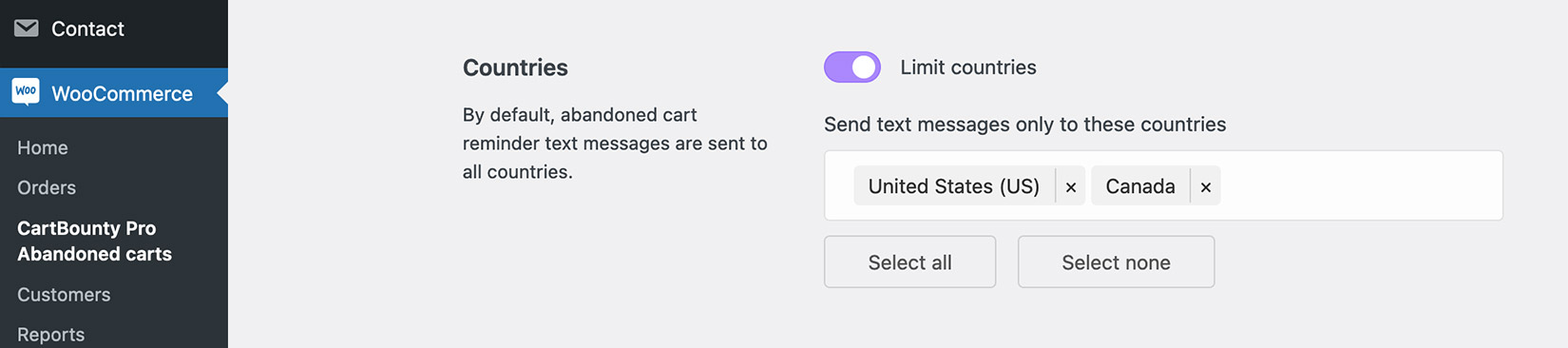
- Optionally limit messages to specific countries
- Optionally enable Quiet hours
- Optionally setup Exclusions
- Use the “Save settings” button to start the automation
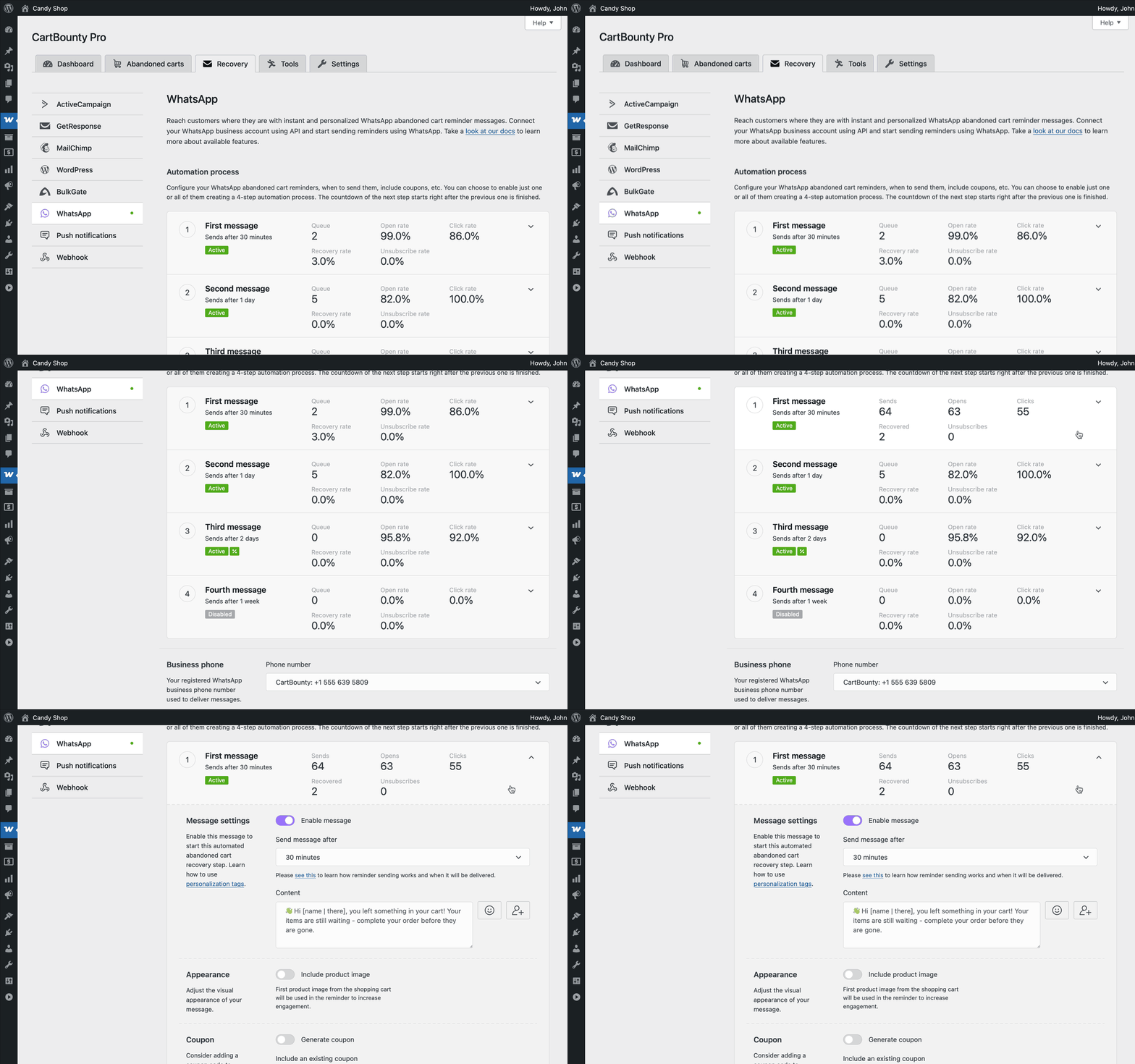
Please note that WhatsApp requires all personalization tags to have fallback values, and messages cannot begin or end with a personalization tag. And messages sent from a localhost environment will not be delivered if an image is included.
3. Enable coupons
CartBounty allows to include both static and one-time generated discount codes inside recovery messages to sway users into completing their orders. Please follow these steps to enable coupons and include them in your reminders.
- Go to your WordPress dashboard > WooCommerce > CartBounty Pro
- Open Recovery > WhatsApp
- Open the message in which you would like to include your coupon
- Choose to generate a unique coupon code for each abandoned cart user or select an existing coupon code from the list that will be sent to eligible abandoned carts
- Setup Usage restrictions if necessary
- Optionally include this personalization tag in your message:
[if: coupon]Use this coupon code [coupon] to get a discount![else]Hurry while the cart is still saved![endif] - Use the “Save settings” button
Now, if a user clicks on the abandoned cart recovery link inside the message, the coupon code will be automatically applied – you do not even have to include the coupon code itself in the message.
Abandoned cart users who are not eligible for the coupon code will not receive it, nor will it automatically be applied.
4. Limit countries
By default, abandoned cart reminders will be sent to all countries, but this can be limited to specific countries. This can be useful in case you are mostly focused on a specific region or country.
5. Quiet hours
The Quiet hours allow you to set a time period during which your store will not send any phone messages. Message will be delivered once quiet hours have passed. It can greatly improve your customer experience and increase the chances of abandoned cart recovery. Here are two tips to keep in mind:
- Do not wake up your customer as he or she most likely will return to sleep
- Send reminders when the customer may be less likely to ignore it

CartBounty will detect customer’s time zone and check if it is safe to send the reminder at the moment or should the reminder be postponed until the quiet period has ended.
To make sure CartBounty users do not accidentally forget to setup quiet hours, all United States-based abandoned cart customers will not be receiving text messages from 21:00 to 08:00 (unless set otherwise).
6. Exclusions
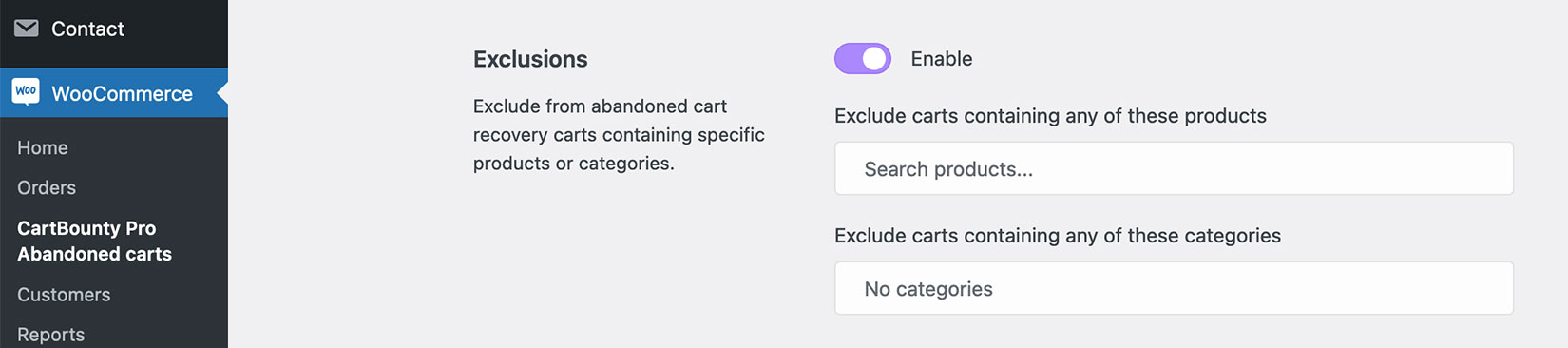
Exclusions block allows an easy way to exclude carts from abandoned cart recovery containing specific products or product categories. If any of the excluded products or product categories is found inside the cart, CartBounty will automatically exclude this cart from recovery.
7. How to opt-in customers
CartBounty allows an easy way to collect customer consent about phone messages both during WooCommerce checkout and in tools like Exit Intent and Early capture. Please follow these steps to enable it.
8. WhatsApp webhook
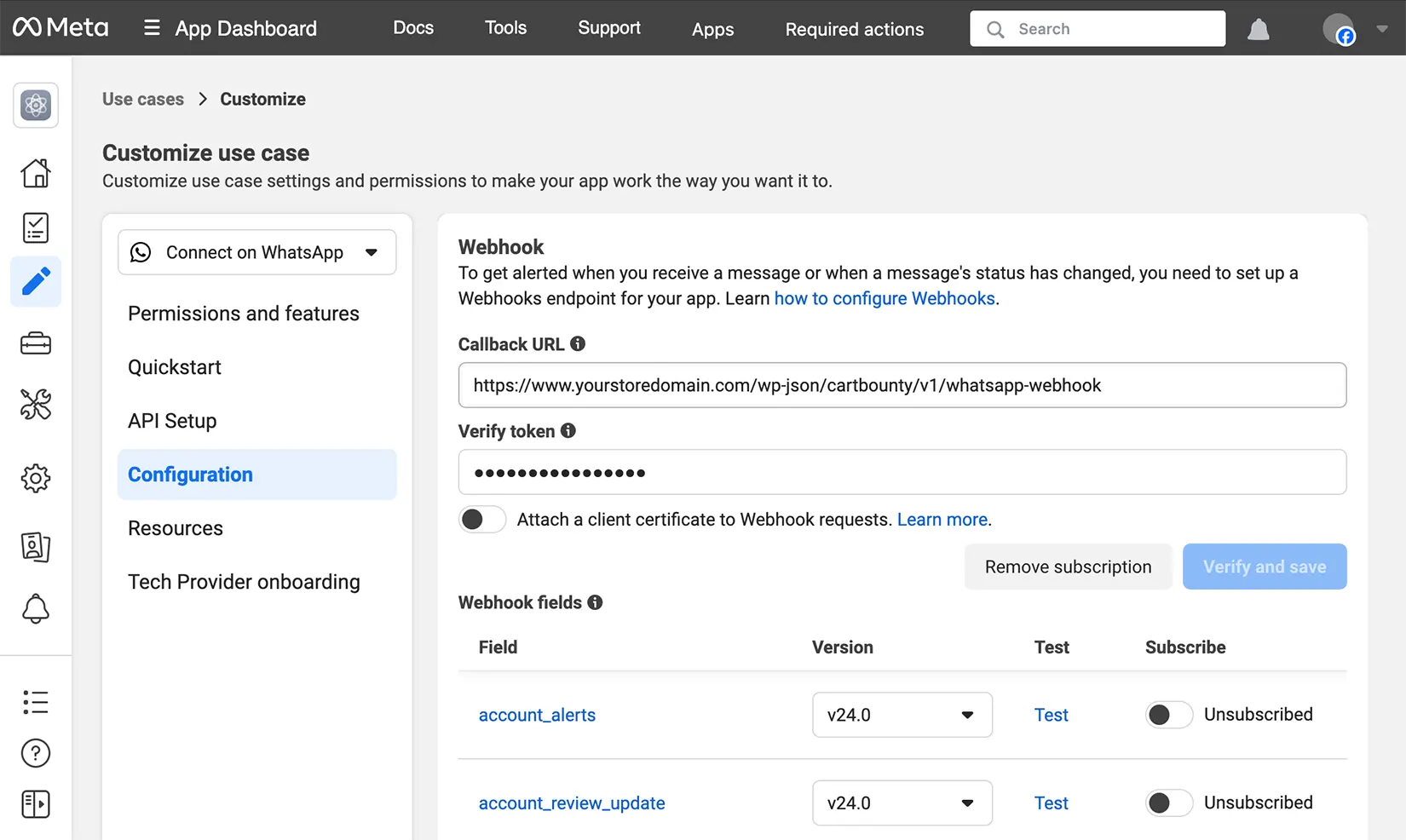
CartBounty tracks each abandoned cart reminder sent to WhatsApp. However, if you would like to receive details such as open rates or failed deliveries, you can enable a CartBounty webhook endpoint that WhatsApp will use to deliver message status updates. Please follow these steps to connect WhatsApp webhook to CartBounty.
- Go to your WordPress dashboard > WooCommerce > CartBounty Pro
- Open Recovery > WhatsApp
- Copy webhook URL and verify token
- Go to your Meta app dashboard and open your app
- Navigate to Use cases > Customize > Configuration and paste previously copied webhook URL and token. Verify and save these settings
- Reload the page and make sure to subscribe to “messages” webhook field
What’s next
You have learned how to send WhatsApp abandoned cart recovery messages using CartBounty. You might also be interested in the following topics:
- Personalize recovery messages using dynamic content
- How to send effective abandoned cart recovery emails
- Get new leads and increase sales using Exit Intent popup
- Increase recoverable carts and sales with “Add to cart” popup
- Lower cart abandonment using dynamic browser Tab notification
- Use push notifications to reach more customers
- Recover abandoned carts using SMS text messages


